FAQ
The app says the server is not responding
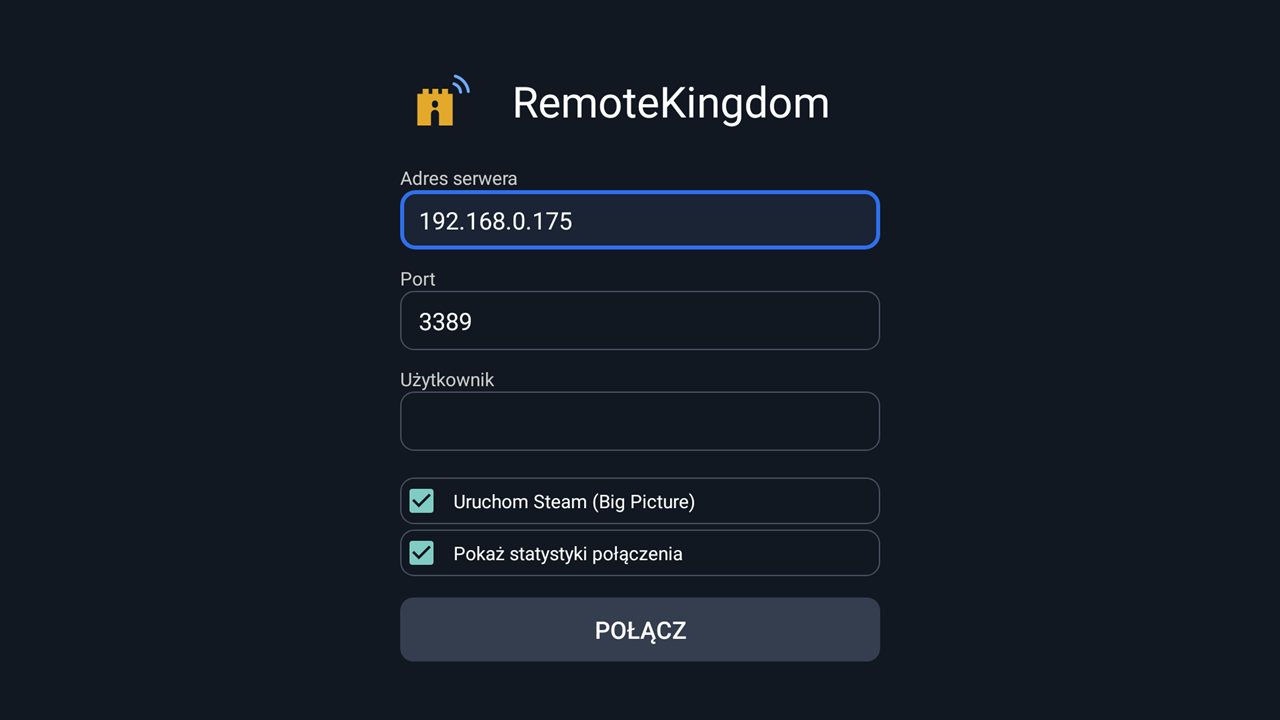
Check that the server is running on the PC (the RemoteKingdom icon next to the clock; if it is missing, start “RemoteKingdom Server” from the Start menu), that the IP address is correct and that the PC and TV are on the same network. The server uses port 3389 by default. If a window about the missing MFPlat.dll file appears when the server starts, the PC is missing Media Foundation – see “Requirements and tips”.
The built-in Windows Remote Desktop uses that same port. If you have it turned on, the RemoteKingdom server will not start – it exits silently and the app only says it cannot connect. To fix this, turn Remote Desktop off (Settings → System → Remote Desktop) or start the RemoteKingdom server on a different port – the port number is given as the first argument (e.g. 3390). If the server will not start, look at the file %ProgramData%\RemoteKingdom\server\rk_server.err (server as a service) or %LOCALAPPDATA%\RemoteKingdom\rk_server.err (plain program): you will find the line [Main] Fatal: bind() failed: 10048.
If the server is running and the TV still cannot connect, check whether Windows has marked your home network as public. On a public network the firewall blocks connections to the server (a safeguard in a café or hotel, for example). You can change this in Settings → Network & internet → Wi-Fi or Ethernet → network properties → Network profile type → Private network.
How do I find my PC's IP address?
Easiest: choose “Find servers” in the app, or click the RemoteKingdom icon next to the clock on the PC – its menu shows “This PC's address”. You can also open Windows Settings → Network & internet → your connection's properties and read the “IPv4 address”, or run ipconfig in a command prompt.
Can I connect with the regular Windows Remote Desktop (mstsc)?
Yes. If Remote Desktop has no saved password, a RemoteKingdom sign-in screen appears after connecting – enter the user name and password of a Windows account on this PC (for a Microsoft account: its email address and password, not the PIN). After 3 wrong attempts the server disconnects.
Can I sign in with a PIN or Windows Hello?
With the RemoteKingdom server running as a service (the default) you see the real Windows lock screen and enter your PIN just as you would at the PC. The server's own sign-in screen (shown in mstsc when no password is saved) accepts only the Windows account password (for a Microsoft account: the account password, not the PIN).
In the built-in Windows Remote Desktop, PIN and Windows Hello do not work – the sign-in screen shows only password and smart card.
With a Microsoft account that has the “require Windows Hello” option turned on, signing in to Remote Desktop with just the password may also fail. Turning that option off, or signing in with the password once locally on that PC, helps.
Can the app connect to a PC without the RemoteKingdom server?
Yes, if the PC runs Windows Pro with Remote Desktop turned on (Settings → System → Remote Desktop). The app asks for the Windows user name and password. By default the password is not stored. You can have it remembered by ticking the option in the sign-in window – the password is then stored encrypted with your device's key. Gamepads, PIN pairing and H.264 video work only with the RemoteKingdom server.
Does connecting sign out whoever is at the PC?
Yes, if you connect through the built-in Windows Remote Desktop (Windows Pro). Client Windows has only one session, so whoever is sitting at the computer gets signed out. Server editions of Windows allow several sessions at once, but home Windows 10/11 Pro does not.
The app asks whether to trust a new certificate
This happens after reinstalling the server or Windows, and also once after switching the server to a Windows service (the service has its own certificate). If it is your PC and you changed nothing, choose “No” and check that you are connecting to the right address.
How do I disconnect or use the mouse with the remote?
Hold Back to disconnect. Hold OK for mouse mode: the arrows move the pointer, OK clicks.
Windows service or plain program?
The installer chooses a Windows service by default. The server then runs from the moment the PC starts, even when nobody is signed in, so you can sign in remotely on the sign-in screen, enter your PIN on the lock screen and confirm UAC prompts. Signing out or switching users disconnects you briefly – the app reconnects, and since server 0.17.25 so does mstsc (no error 0x904).
You can also choose a plain program that starts when you sign in. Then the sign-in screen, lock screen and UAC prompts are not visible remotely: the picture freezes and the keyboard does not work until someone at the PC dismisses them. To change how the server starts, run the installer again and pick the other option (since 0.11.1 the previous one is then removed).
Can the TV get a screen of its own (virtual monitor)?
Yes, as an experimental option since 0.14 - tick "Virtual monitor" in the installer (service mode only). During a connection Windows gets an extra screen at exactly the TV's or phone's resolution and makes it the primary one. Since server 0.16.3 the PC's monitor goes dark meanwhile, so every window is on the screen you see in the app. When you disconnect, the virtual screen goes away and the PC's monitor comes back with its windows. Since 0.17.6 a key press, a click or a clear mouse movement at the PC also switches its monitor back on during the session – the remote connection goes on. Since 0.17.22 the PC's monitor then shows exactly what the client sees (a clone in the client's resolution), and after 10 minutes without input at the PC the virtual screen is the only one again. It is still the same desktop: one pointer and the same windows, so it is not for two people working at once.
The option installs the Virtual Display Driver (MIT licence) and adds its publisher, SignPath Foundation, to Windows' trusted publishers - otherwise Windows would ask for consent during the install. Uninstalling the server removes the driver and that trust.
Games in exclusive fullscreen are black on the virtual monitor - Windows' capture cannot see them there. Set the game to windowed or borderless, or switch the app to "Virtual monitor: off" before connecting (app 0.14.2 and later): the picture then comes from the PC's monitor, where such games show.
Can the picture be HDR?
Yes, as an experimental mode since server 0.15 and app 0.14: "Picture: HEVC HDR". It appears only on TVs that show HDR10 and have a hardware 10-bit HEVC decoder - elsewhere the option does not exist. The server turns HDR on for the connection (on the virtual monitor, or on the PC's monitor if you had not) and back off afterwards. The whole screen then goes as HEVC Main 10 HDR10 video, so desktop text is slightly less sharp than in the lossless mode. When something on the way cannot do HDR (graphics card, monitor), the server sends plain H.264.
Can the picture run at 120 frames per second?
Yes, since server 0.17.23 and app 0.17.0. When the phone's or TV's screen can do 120 Hz at its resolution, the app switches it over and asks the server for 120 frames (the virtual monitor then runs at 120 Hz too). Otherwise the picture runs at 60; mstsc stays at 60. Since 0.17.24 the server really reaches 120, as long as the game draws that many frames and the Wi-Fi keeps up – on a weaker network the automatic control lowers the frame rate by itself.
Can the PC stay silent while the sound plays on the TV?
Yes, as an experimental option since 0.14 - tick "Virtual sound card" in the installer. During a connection the sound goes to the TV only, and after it the PC goes back to its own device. It needs a virtual sound card: Steam Streaming Speakers (installed by Steam for Remote Play) or the free VB-CABLE. Without either the sound works as before - on both the PC and the TV. Programs set to one specific device keep playing there.
Can the app put the PC to sleep or shut it down?
Yes, since app 0.15 and server 0.16. During a session there is a menu at the top of the screen with a "Power" button: sleep, hibernate or shut down. On a TV the menu shows in mouse mode (hold OK), on a phone after touching the top edge of the screen. While the phone app runs in the background, its notification has a button that shuts the PC down (tap twice) and a separate "Disconnect" button.
If sleep or hibernation is turned off in Windows, the app says so. PCs with Modern Standby (many mini PCs and laptops) are supported since server 0.16.1. Hibernation works even when Windows does not show it in the Start menu – that is only a menu setting.
Can the picture travel over UDP?
Yes, since server 0.17 and app 0.16. The picture then uses RDP's standard UDP transport (the one Windows uses for Remote Desktop), which is smoother on Wi‑Fi and over a VPN because a lost packet no longer stalls the whole stream. Sound, input and gamepads stay on TCP. It works with mstsc too. The installer adds a firewall rule for UDP; when UDP cannot get through (firewall, network), the session stays on TCP as before. When UDP stops working during a session, the picture in the app returns to TCP without disconnecting (server 0.17.5 and app 0.16.1; mstsc reconnects instead, and since 0.17.11 it first waits up to 10 seconds, so a short Wi-Fi drop does not disconnect it). The app's statistics show whether the picture comes over UDP or TCP. Since server 0.17.25 and app 0.17.2, when the network loses packets the server adds repair packets (FEC) over UDP: the app rebuilds a single lost packet at once, without waiting for a resend. Nothing changes on a network without losses. Since server 0.17.27 mstsc gets the repair packets too.
Server 0.17 needs app 0.16 or later – an older app takes it for Windows and shows the picture in the simplified bitmap mode.
Can the app wake a sleeping PC?
It tries - an experimental feature since 0.13 of the server and the app (Wake-on-LAN). Connect once while the PC is on: the server tells the app its network cards. When the PC later does not answer, the app sends the wake-up signal and waits for the server. The installer (option "Let the RemoteKingdom app wake this PC") enables waking on the wired network card and turns off Fast Startup.
Whether it works depends on the hardware: it needs a wired connection, the same home network, and Wake on LAN enabled in the BIOS to wake from hibernation or shutdown. On some PCs waking over the network does not work even then.
Windows warns about an unknown publisher
The installer is not code-signed yet. Click “More info” → “Run anyway”. Only download the installer from this page.
 RemoteKingdom